

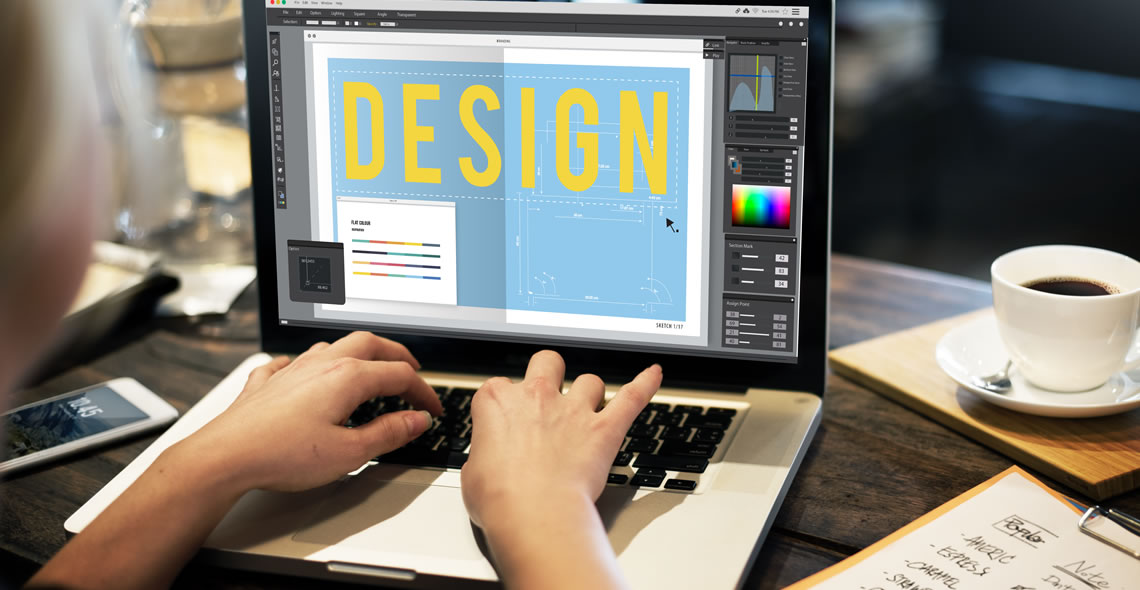
Ever wonder why a picture in a magazine looks flawless or how creative an advertising banner looks? While being a professional designer or photographer may have a lot to do with it, the potential to create amazing images is possible for anyone. The key is to learn how to use the right post-production software, such as Adobe Photoshop. The ability to create multi-layers with unique effects and designs allows the designer to add depth and dimension. It is important to understand what Photoshop is used for as it has multiple functions and can be a very useful tool in not just editing photos, but also creating pamphlets, banners, business cards and flyers. This course will teach you about the benefits of such a program and also provides instructions on how to use it for both professional and personal needs.
Throughout the course, you will see 21 different videos. Each video will take you on a step-by-step journey through the basic features of Photoshop. While there are several obvious features, such as the ‘Layers’ dialogue box, there are additional ways to use each tool to maximise the post effects of a photo.
In this course, you will learn:
- How to create a new file and adjust a canvas size that is suitable to project needs
- How to navigate through the software, where to find its tools and understand the layout of the page
- Learn how to identify Photoshop tools and understand their basic functionalities
- Learn how to identify the secondary tools, how to select them and what they are used for
- Learn shortcuts and understand how and when to use them
- How to use the layer option and understand the layer dialogue box
- Learn how to use and apply adjustment layers
- How to add effects and filter to an existing image
Explore our full library of training courses.
Course Duration: 2
Total Modules: 21
Module 01: Introduction – Build a New File
Module 02: Navigational Controls
Module 03: Basic Tools Rundown
Module 04: Basic Tools Usages
Module 05: Basic Secondary Tools
Module 06: Basic Layers
Module 07: Painting Sample
Module 08: Adjustment Layers (Part 1)
Module 09: Adjustment Layers (Part 2)
Module 10: Adjustment Layers (Part 3)
Module 11: Transform Tool (Part 1)
Module 12: Transform Tool (Part 2)
Module 13: Colour Range Select
Module 14: Image Settings
Module 15: Image Adjustment
Module 16: Photoshop Fun
Module 17: More Photoshop Fun
Module 18: Ruler Usage
Module 19: Pamphlet Design (Part 1)
Module 20: Pamphlet Design (Part 2)
Module 21: Pamphlet Design (Part 3)
